


Bolt Card – Your Offline Lightning⚡Wallet
Do you want to use your Bolt Card, your Bolt Ring, or simply an NFC tag as a Lightning wallet? Then you’ve come to the right place. This tutorial uses LNbits as the backend server wallet.https://ereignishorizont.xyz/wp-content/uploads/2026/10/bc-handout-en.pdf
You need to follow five basic steps:
1. Set up an LNbits wallet and add the “Bolt Cards” extension
2. Read the Bolt Card UID and make it known to the LNbits wallet
3. Create a Bolt Card link in LNbits
4. Write the link to the Bolt Card using the Bolt Card app
5. Fill the wallet and get started
The technology and procedure hold a few stumbling blocks and pitfalls, but you will master them with the following tutorial.
1. Bolt Card Basics
The foundation is always an NFC tag, a small, passive memory chip with an antenna used for wireless near-field communication (NFC). It can store information and send it to NFC-enabled devices such as smartphones or tablets when they are in close proximity. Not to be confused with RFID tags (Radio Frequency Identification). RFID has a longer range and is often used for applications like warehousing and logistics, while NFC has a much shorter range and is mainly used for exchanging small amounts of data, such as contactless payments or information transfer between two devices.
NFC tags come, for example, as adhesive tags, round chips (e.g. wristbands), as a Bolt Card (in card format), Bolt Ring, etc. For simplicity, I will talk about the Bolt Card in this tutorial. The instructions naturally apply to all formats. What matters is only the type of NFC tag, because there are differences in storage capacity, read speed, security features, compatibility and cost. Classically, we know the Type 2 tags, e.g. the NTAG213/215/216 used for advertising, business cards, logistics, etc. They have some memory to store data or “internet links” such as URLs. This way you can, for example, provide a link for paying or for withdrawing a payment – but without any security features against misuse.
To make misuse through repeated use more difficult, there are NFC Type 4 tag chips. The NTAG 424 DNA from NXP is an NFC Forum Type 4 chip with a particularly high security level – ideal for product authentication, brand protection, IoT scenarios and more. It is certified for certain hardware and software, supports AES‑128 encryption, Secure Unique NFC (SUN) and Secure Dynamic Messaging (SDM): with every scan it generates a unique, encrypted NDEF message token and enables secured data transmission and access restrictions to sensitive areas.
2. Requirements
The NFC chip / NFC card
For the Bolt Card, NFC chips of type NTAG 424 DNA must be used. Other types such as NTAG 213, 215, 216, etc. do not offer AES-128 encryption and cannot generate a SUN message (Secure Unique NFC). The NTAG 424 DNA thus ensures that money can only be withdrawn once per scan.
Required app for writing the Bolt Card
– Android: Bolt Card NFC Card Creator
– Apple: Boltcard NFC Programmer
The funding source / the wallet
In this tutorial we use an LNbits wallet. For testing and smaller amounts you can use the demo server at demo.lnbits.com. As the name suggests, this is a demo server that can be shut down at any time. Then you lose the funds on it. So for larger amounts, use it only briefly and empty the wallet afterwards. It is best to ask in your circle of acquaintances whether someone knows a publicly accessible LNbits server that you can share. The server must be reachable from the clearnet (internet). LNbits on an Umbrel or Raspiblitz without external access is unfortunately not sufficient.
Optional: Additional tool for reading card information or writing simple NTAGs
– Android / Apple: NFC Tools
3. A Guide
Step by step, this guide leads you through setting up the Bolt Card.
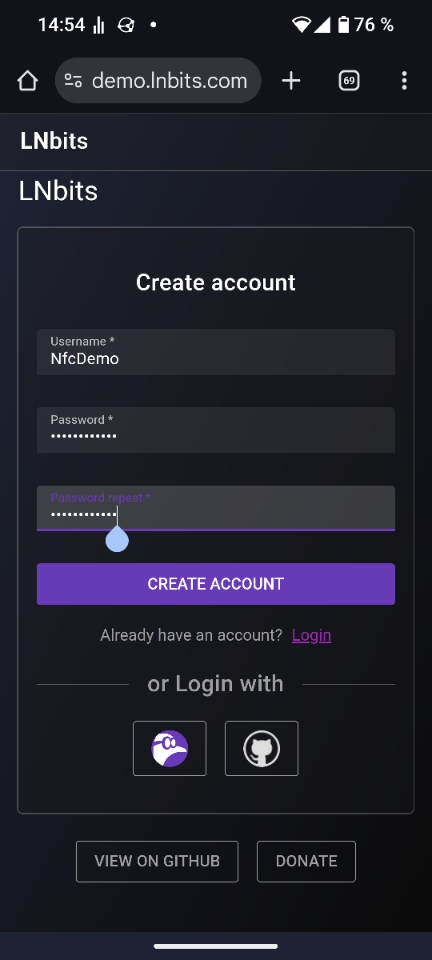
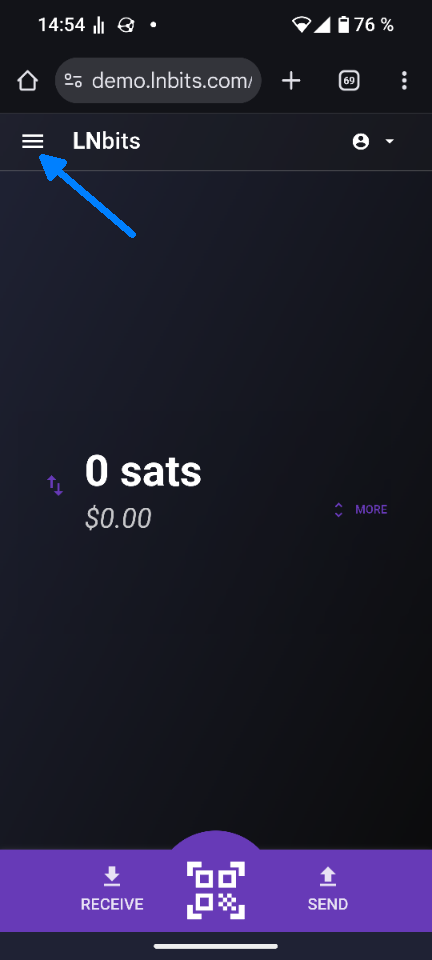
1. Create an account
Go to demo.lnbits.com and create a wallet.
2. Enable the “Bolt Cards” extension
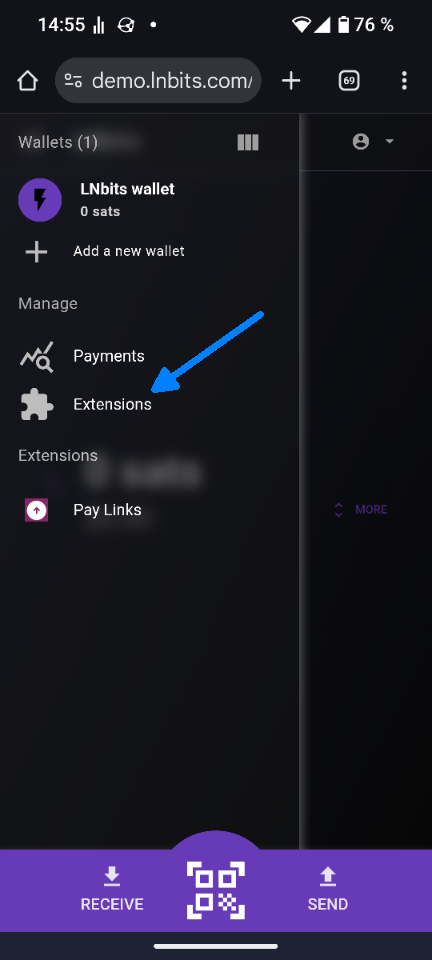
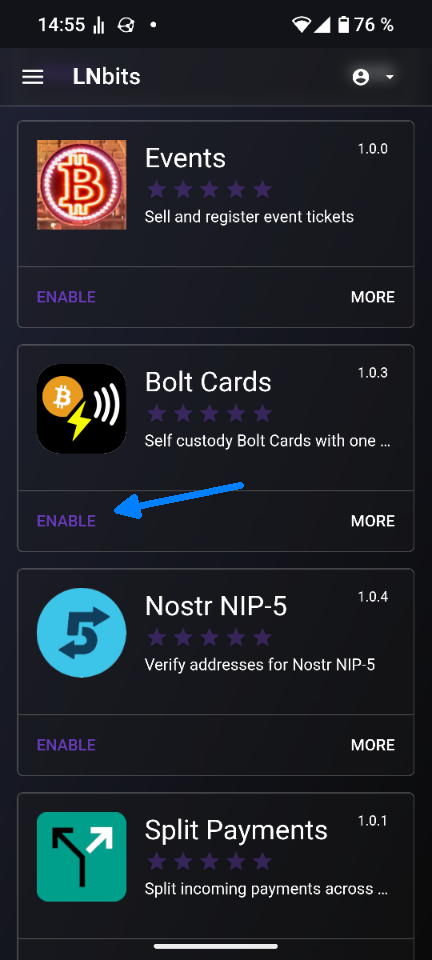
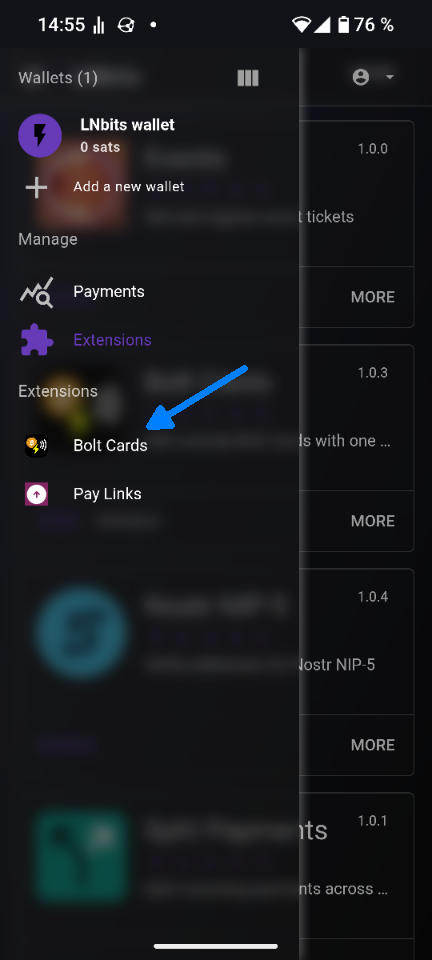
In LNbits: Menu > Extensions > Bolt Cards and set it to ENABLE.
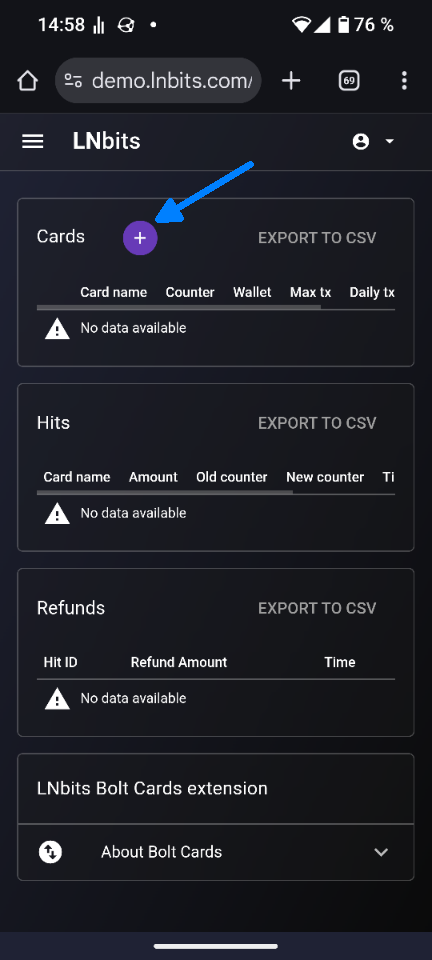
3. Create a new card
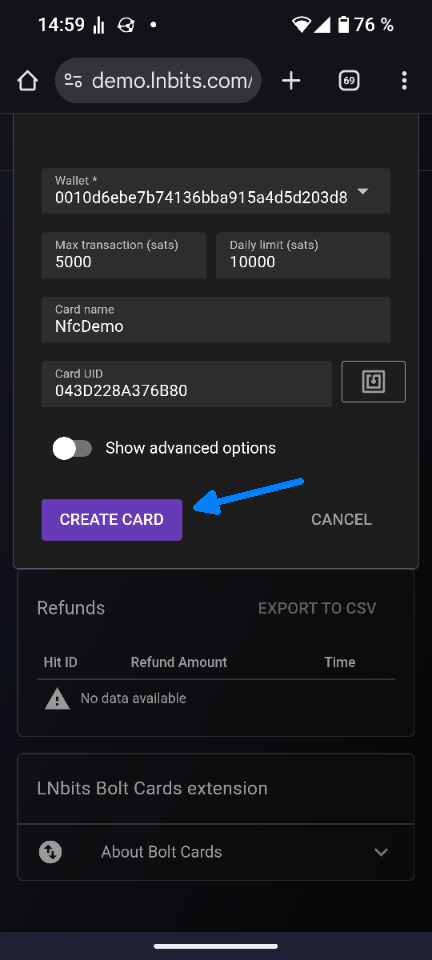
Menu > Extensions > Bolt Cards, select Cards + and enter the following data:
– Wallet
– Max Transaction
– Daily Limit
– Card Name
Note: Please do not change the “advanced options”!
Note: Do not set the limit for “Max Transaction” too high. If no invoice is specified, the maximum amount (Max Transaction) is always used automatically.
4. Scan the Bolt Card
Click the NFC 🌀 symbol and hold the Bolt Card to your phone.
The Card UID field is filled in automatically.
Note: Reading the UID directly with LNbits only works with Chromium-based browsers, e.g. Chrome, Edge, Opera or Brave. Firefox and Safari unfortunately do not work. On Apple devices, NFC functionality in the browser is generally blocked. In this case you have to read the UID via the Bolt Card app (→ Read NFC) or with NFC Tools and paste it into LNbits manually.
5. Create the card
Click CREATE CARD to create the card entry.
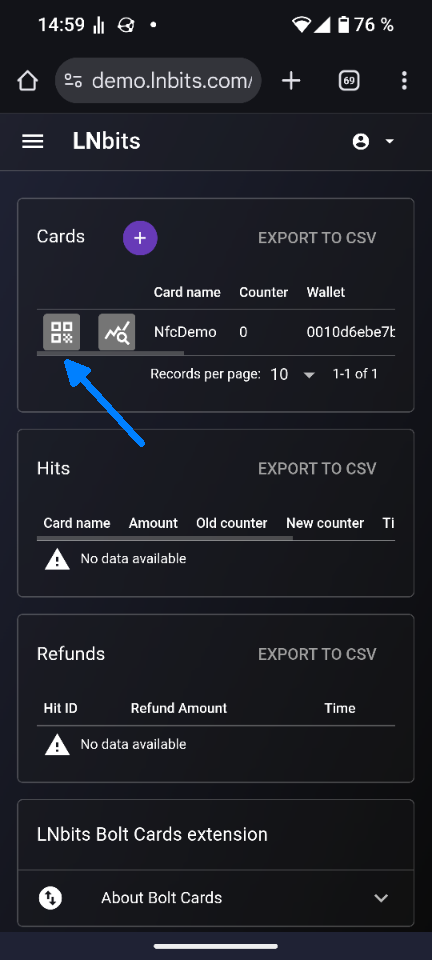
6. Generate the link
Go to Menu > Extensions > Bolt Cards and select the QR code symbol under “Cards”.
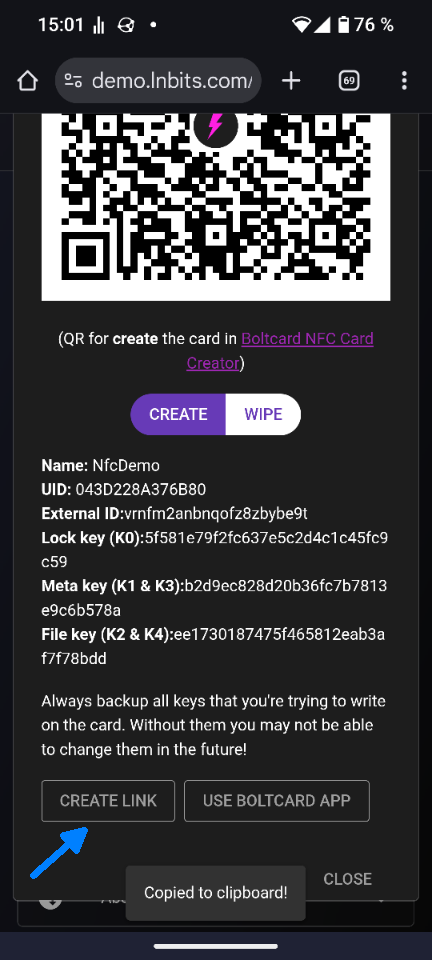
Click CREATE LINK to generate the link and copy it to the clipboard.
7. Open the Bolt Cards app
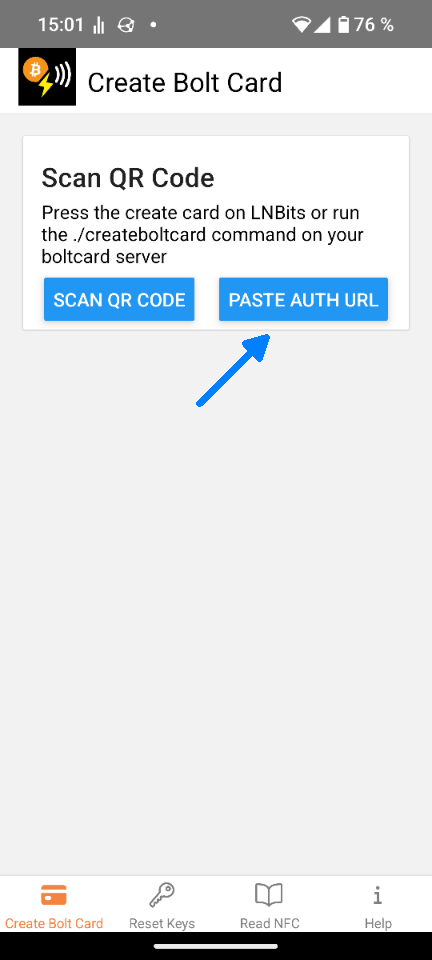
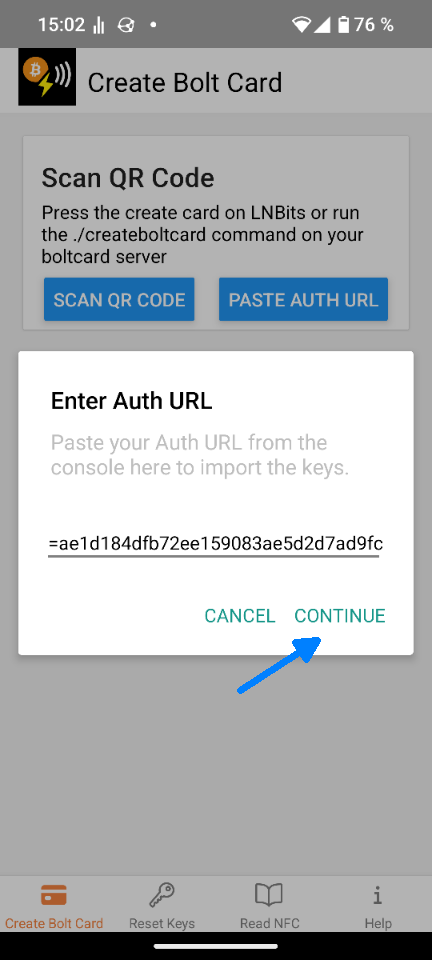
Open the Bolt Cards app and select PASTE AUTH URL. Paste the copied link and click CONTINUE.
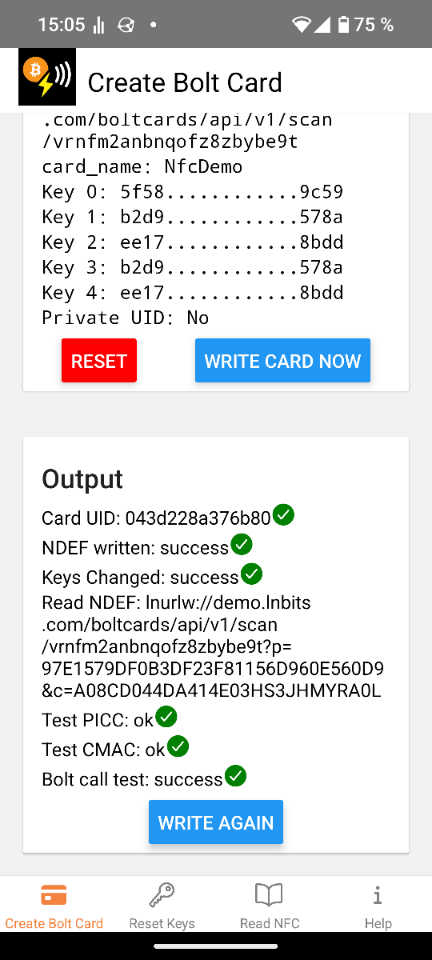
8. Write the card
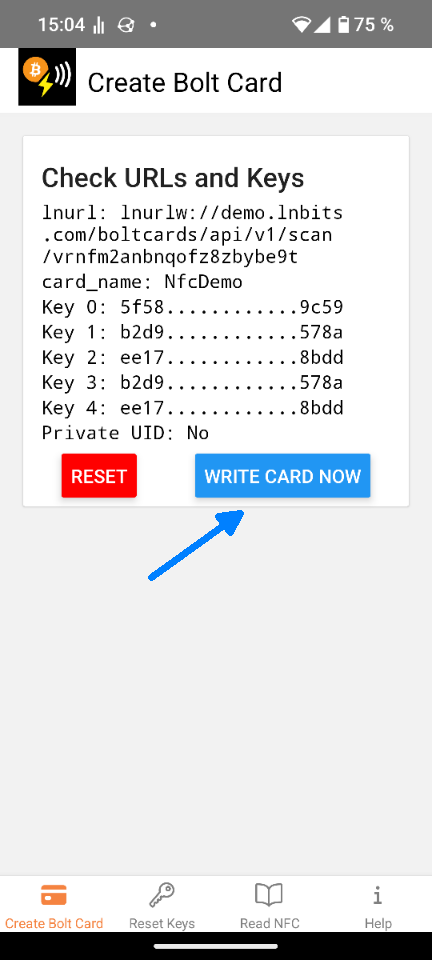
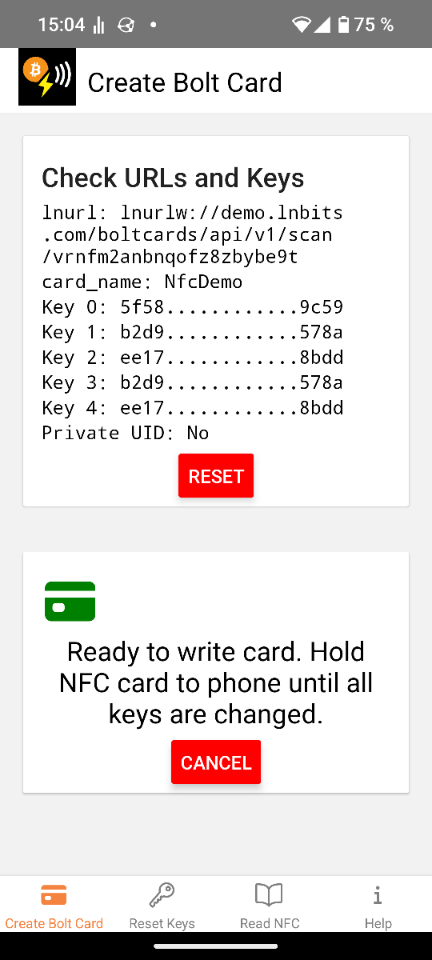
Under “Check URLs and Keys” click WRITE CARD NOW and hold the Bolt Card to the phone again.
9. Test
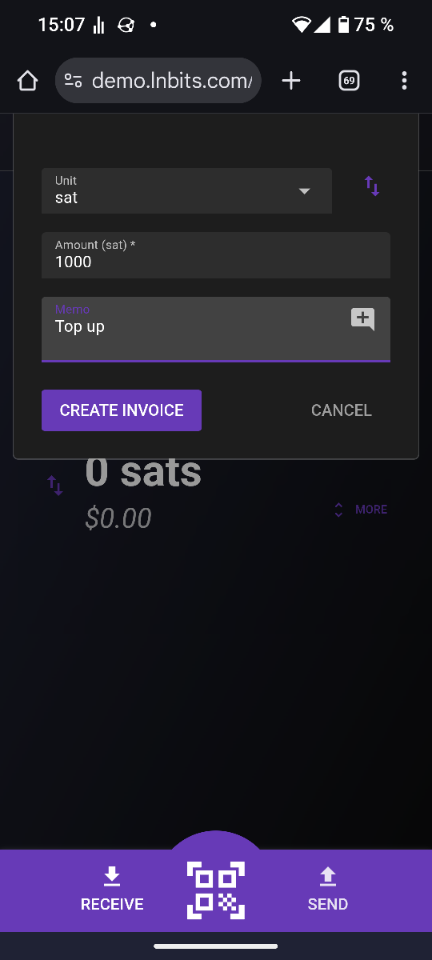
As soon as the confirmation appears that the chip was written successfully, you can fill the LNbits wallet with satoshis and test the card, e.g. with WoS. 🎉
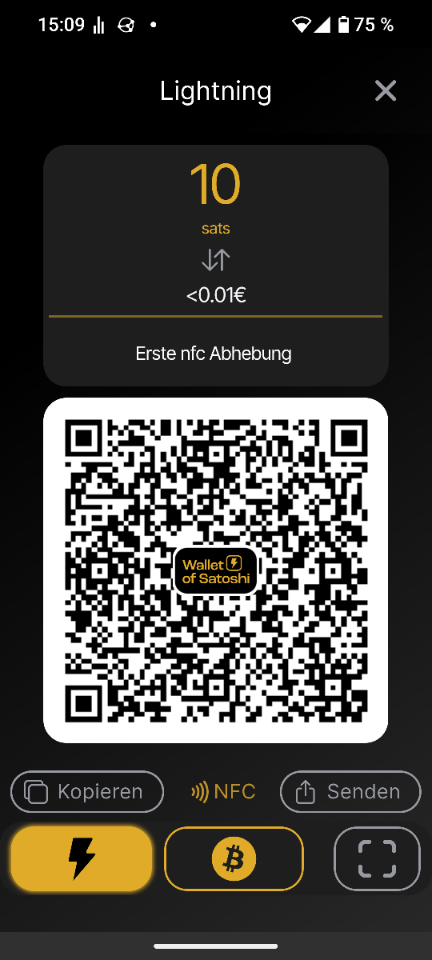
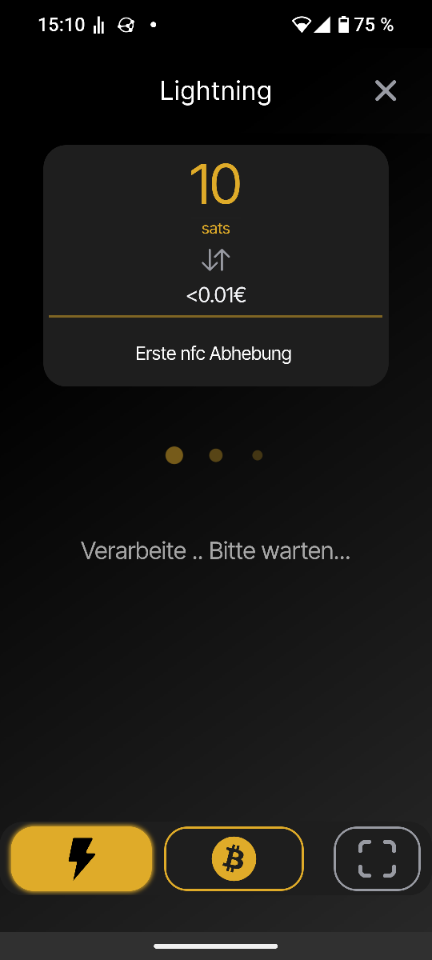
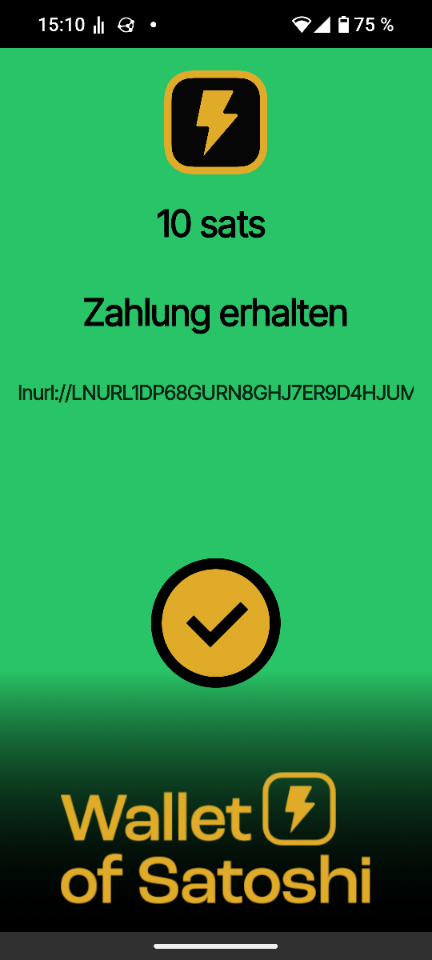
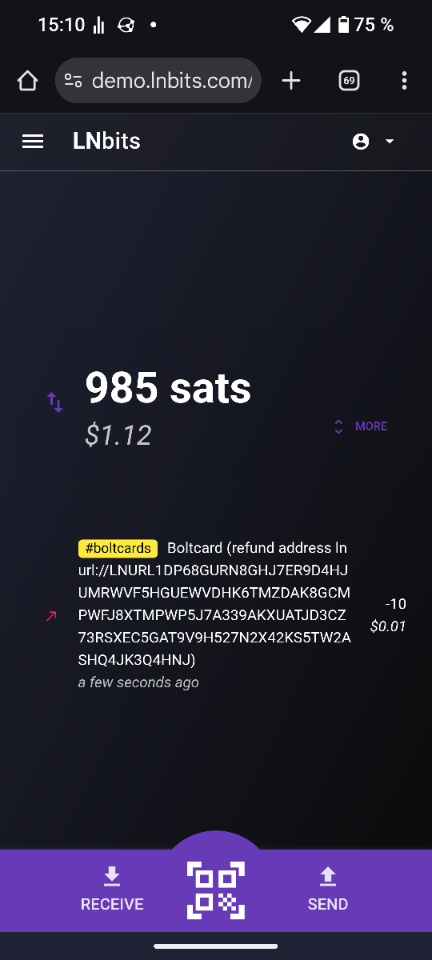
Create a small test invoice with e.g. 10 satoshis and hold the card to the phone. If NFC is enabled, WoS should recognize the card and automatically debit the amount.
5. Backing Up and Wiping the Card Data
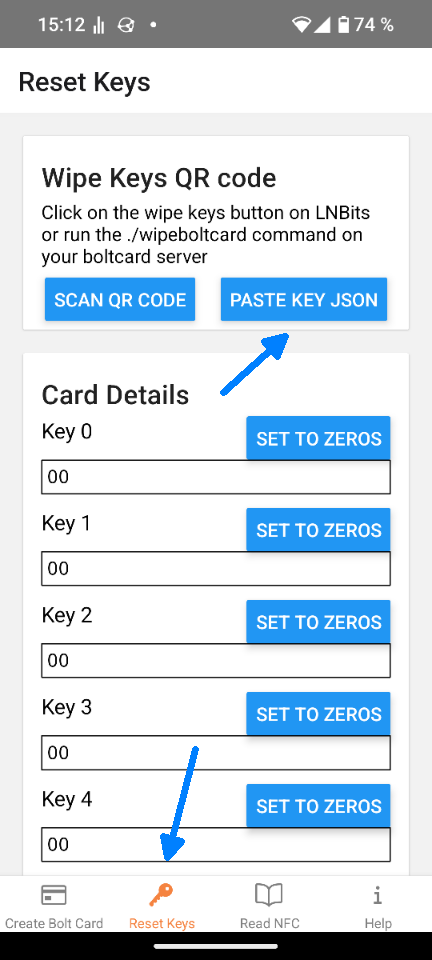
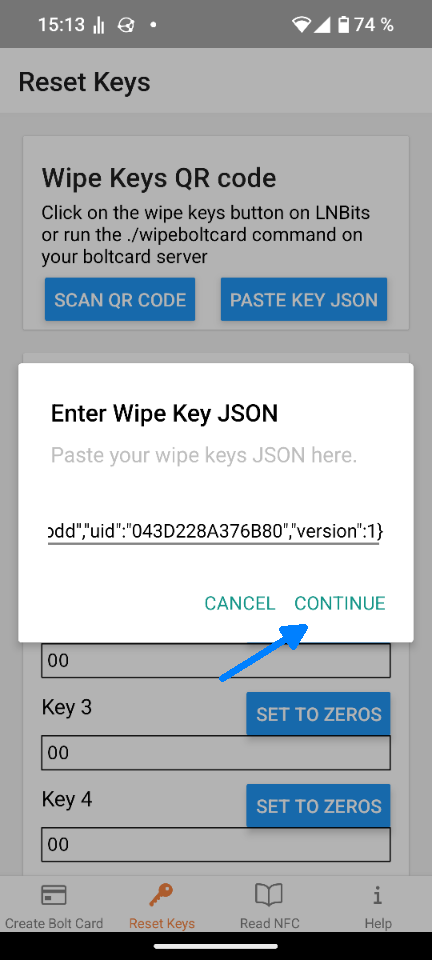
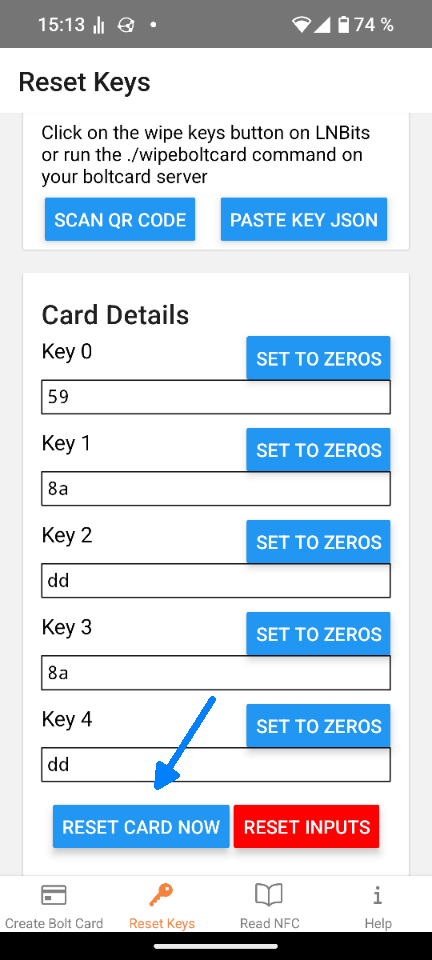
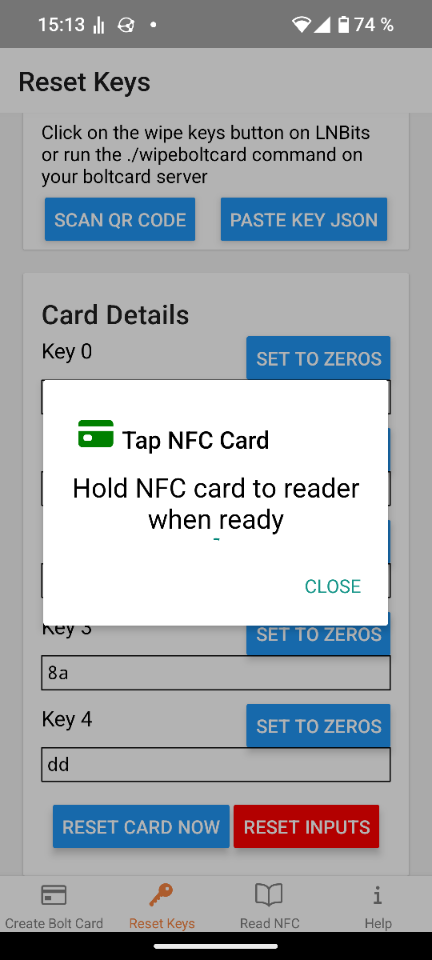
A written Bolt Card cannot simply be overwritten. To wipe it, you need a special WIPE DATA JSON string, which you later paste into the Bolt Card app to release the card again. It is important to back up this string in case access to the LNbits wallet is lost. So save it somewhere safe!
Steps to back up the JSON string:
1. Log in to your LNbits wallet.
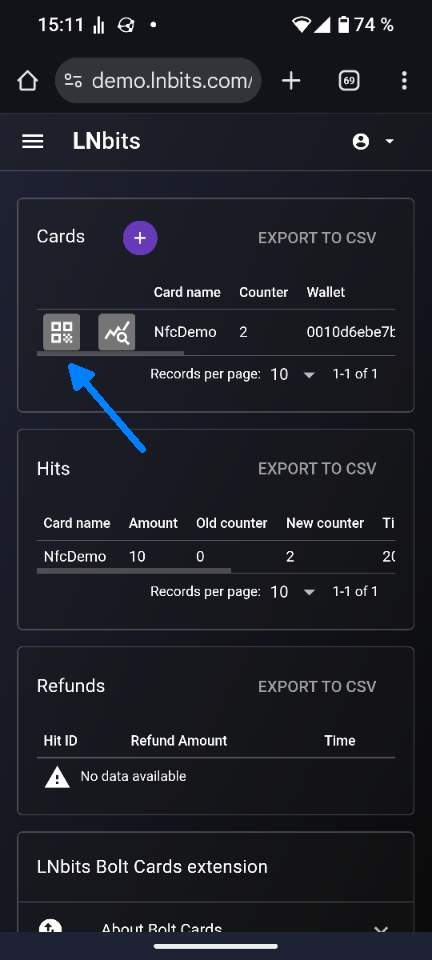
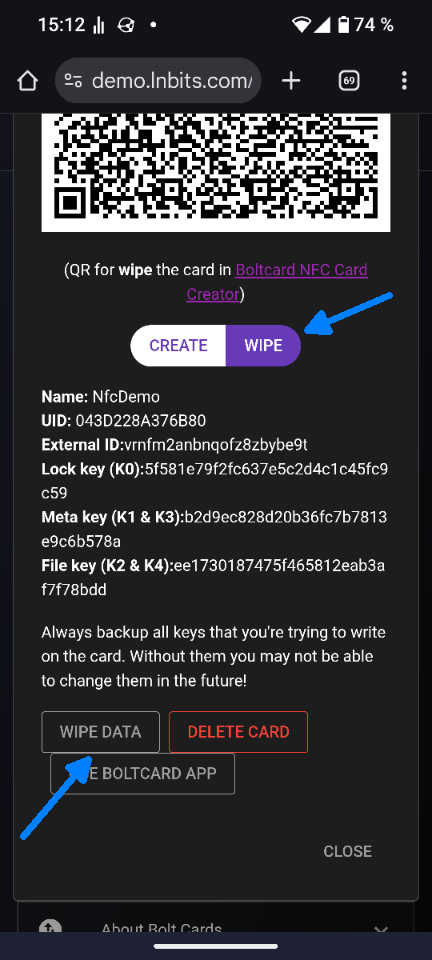
2. Go to Menu > Extensions > Bolt Cards and select the QR code symbol under “Cards”. Click WIPE.
3. Important: There are two buttons: “WIPE DATA” and “DELETE CARD”. Only click WIPE DATA to copy the JSON string. The “DELETE CARD” button deletes the card in the LNbits wallet – you don’t want that.
4. Back up the JSON string safely. It serves as a backup to wipe the card later.
Only delete the LNbits wallet or the card in LNbits once you are absolutely sure that you have released the card again, i.e. wiped the data on the card.
Below are a few pictures showing how you can wipe the card data and thereby release the card again.
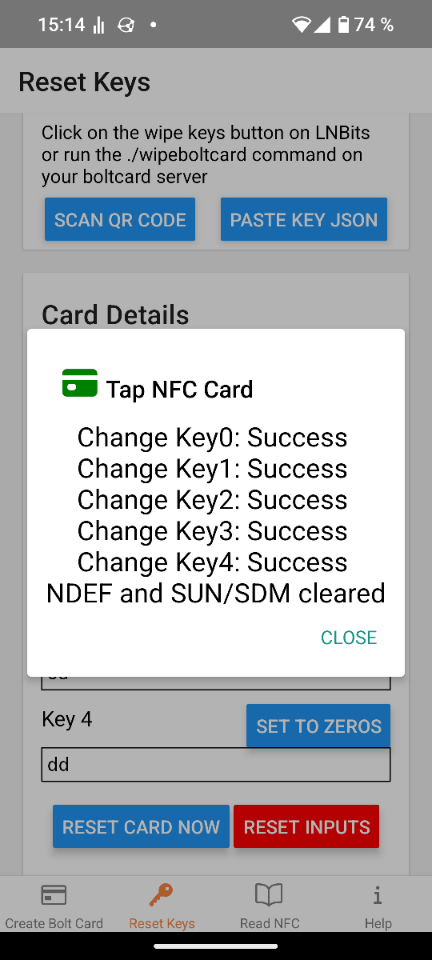
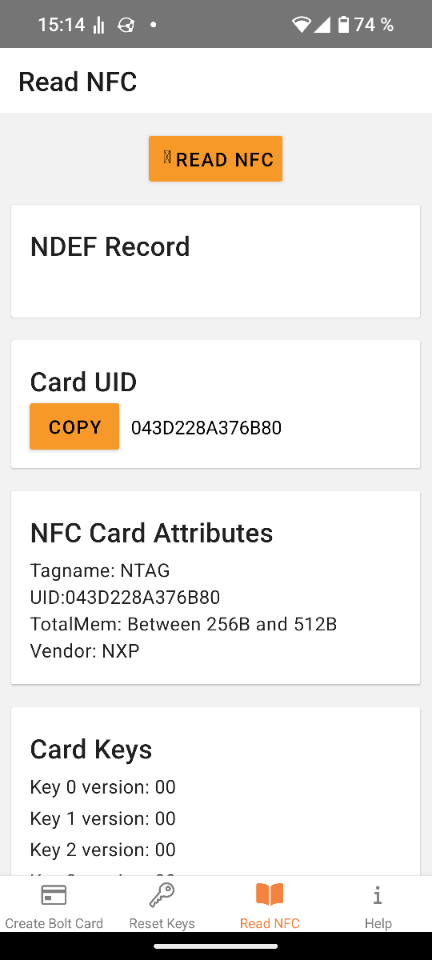
6. Further Notes
– Hold the NFC chip to the phone for at least 5 seconds to make sure all data is written correctly.
– Make sure your phone is sufficiently charged – or even better: use a power bank. Too low a voltage can cause write and read errors.
– The Bolt Card app tests the card directly after writing. If all goes well, you get a green checkmark everywhere. However, a common error is: “Bolt call test: Error: Network request failed”. This can have various causes:
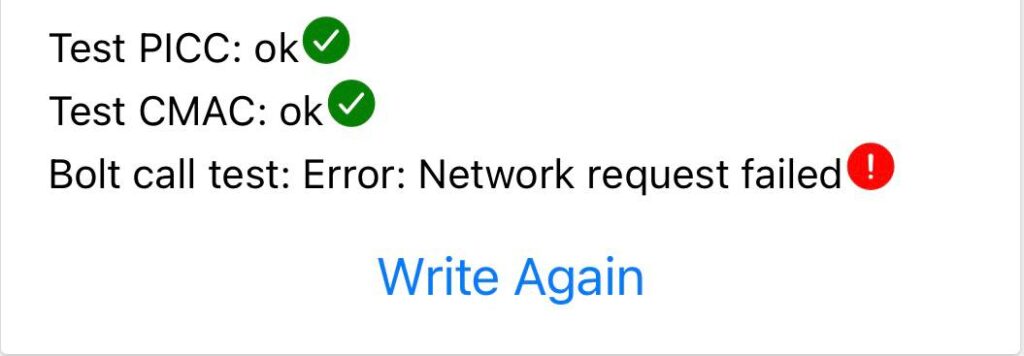
– No internet connection of the Bolt Card app
– The LNbits server is not reachable from the internet
→ Home-network LNbits servers on Umbrel and Raspiblitz unfortunately do not work.
– If the card was written successfully but the test transaction with WoS fails, please check the following:
– Is the LNbits wallet funded?
– Did you choose the correct wallet for the card (if several exist)?
– Is your LNbits server reachable from the clearnet?
– As already mentioned: Apple devices cannot read the UID (Unique Identification Number) directly in the browser. Use the Read function of the Bolt Card app or the NFC Tools app for this. If that doesn’t work either, check whether NFC is really enabled. If it still doesn’t work, have someone else read the UID and send it to you.
– The UID is a 14-digit hexadecimal number. In some apps it is also called a “serial number” and displayed as seven pairs of digits, each separated by a colon (:). To use this UID in LNbits, you must remove the colons first.
– If you are looking for more information about Bolt Cards and possible setups, check out plebtag.com.
– The official site with lots of information about the Bolt Card can be found at: boltcard.org
– Shops for a Bolt Ring: rfidsolution.com / rfidtag.com. This seems to be one and the same shop with two websites. I have already ordered from the first one. The rings are shipped by express and arrive quickly. However, you have to add customs duties, import VAT and FedEx fees. The bill comes later from FedEx once the goods are delivered. For me that was another 27.64 euros for two rings. Important: know your ring size! The website uses US sizes. To convert to EU size or millimeters, it’s best to use a conversion chart.
7. Conclusion: Bolt Card
Wallet of Satoshi (WoS) reads Bolt Cards quite reliably. Other wallets like Blink also work, but you have to enable NFC manually. It didn’t work for me with Phoenix, because my GrapheneOS has several NFC-capable wallets installed but doesn’t recognize the selection. With some wallets like BitBanana, withdrawing via an invoice doesn’t work, but you can edit the maximum amount. Zeus doesn’t appear in the selection at all for me and doesn’t react when I create an invoice. This is probably due to my GrapheneOS setup – but as you can see: the Bolt Cards work, even if not everything is 100% compatible.
Made with love 🧡 Since 908420 / 969845